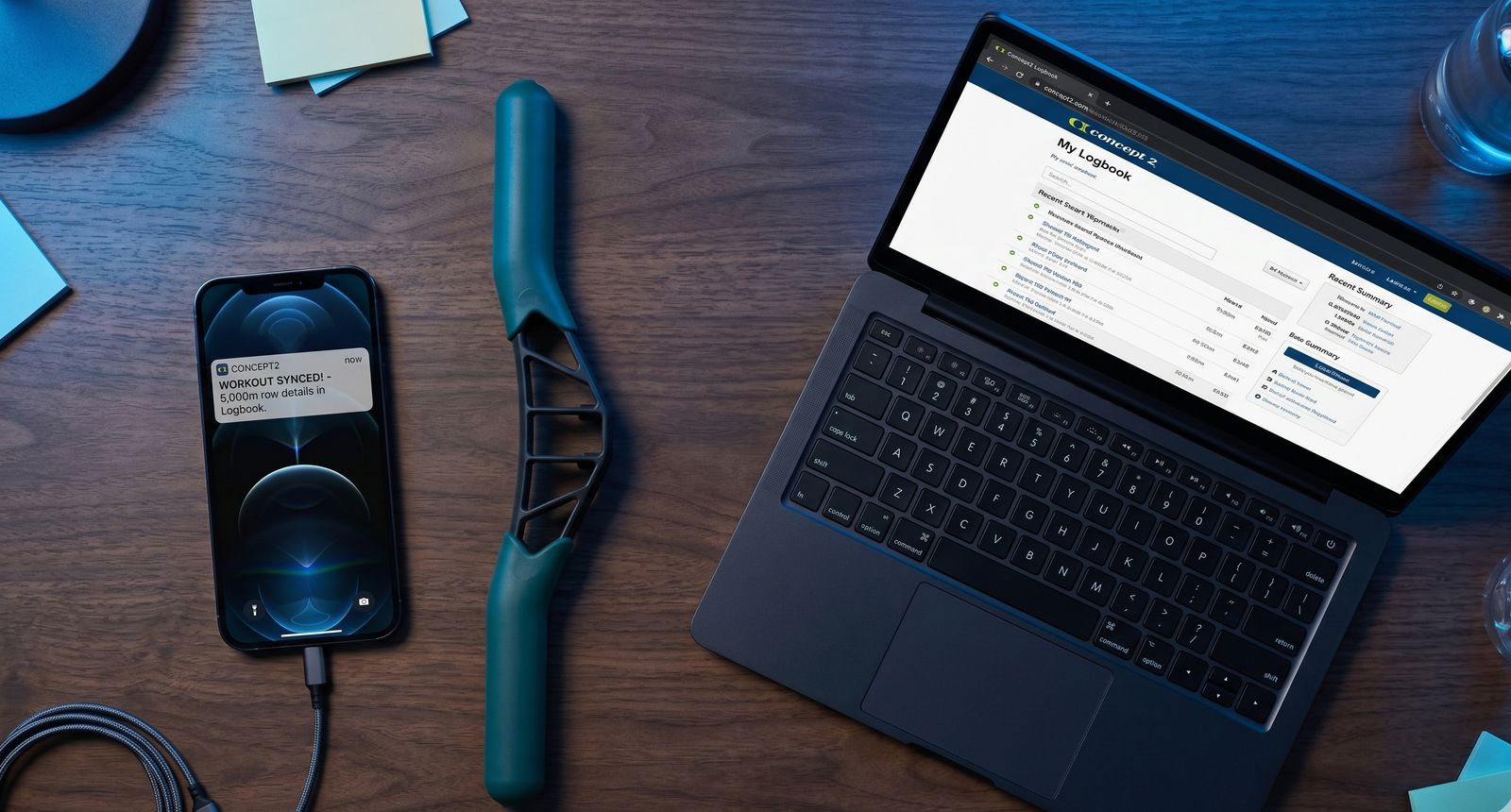
If you already log workouts to the Concept2 Logbook - either through ErgData, the C2 website, or a connected PM5 - you can have all that data flow into ErgManiac automatically. Here's how to set it up.
What the Concept2 Logbook is
The Concept2 Logbook is Concept2's official workout tracking platform at log.concept2.com. It stores every workout logged from:
- ErgData app: The official C2 companion app that connects to PM5 via Bluetooth
- PM5 USB: Plugging your monitor into a computer
- Manual entry: Typing results on the C2 website
- Third-party apps: Any app that connects to C2's platform
If you've been using a Concept2 erg with any of these methods, you probably already have a Logbook with workout history.
Why sync to ErgManiac
The C2 Logbook stores your data but doesn't help you train smarter. Syncing to ErgManiac adds:
- AI post-workout analysis on every imported session - pacing feedback, zone adherence, recommendations
- Split trend analytics grouped by workout type over time
- Auto-detected personal bests across all distances
- AI training plans based on your actual fitness data
- 24/7 AI coaching that knows your full training history
Already have workouts in the C2 Logbook? Create an ErgManiac account and your history imports on first sync.
How to connect (step by step)
1. Create your ErgManiac account
Go to ergmaniac.com/register and sign up. You can use email or Google sign-in.
2. Go to Settings
Once logged in, navigate to Settings from the sidebar.
3. Connect Concept2
In the integrations section, click "Connect Concept2 Logbook." This opens the Concept2 authorization page.
4. Authorize access
Log into your Concept2 account and approve ErgManiac's request to read your workout data. ErgManiac only reads data - it never writes to or modifies your C2 Logbook.
5. Wait for sync
Your existing workouts begin importing immediately. Depending on how many workouts you have, this may take a few minutes. New workouts sync automatically going forward.
What data gets imported
Each synced workout includes:
- Total distance and time
- Average split (pace per 500m)
- Stroke rate
- Workout type (single distance, single time, interval)
- Date and time
What C2 sync does NOT include: Per-interval split breakdowns and heart rate data are not always available through the Logbook API. For detailed interval data, use ErgManiac's photo scan to capture the full breakdown from your monitor screen.
Using sync with ErgData
The best setup for PM5 users:
- During workout: Use ErgData for live Bluetooth tracking
- After workout: ErgData automatically logs to C2 Logbook
- ErgManiac syncs: Workout appears in your dashboard within minutes
- For interval detail: Snap a photo of the interval detail screen with ErgManiac's photo scan
This gives you the best of both worlds: live tracking from ErgData, AI coaching and analytics from ErgManiac.
Troubleshooting
Workouts not appearing?
- Check that your C2 connection is still active in Settings
- Make sure the workout was actually logged to your C2 Logbook (check log.concept2.com)
- Sync may take a few minutes after workout completion
Duplicate workouts?
- ErgManiac detects duplicates by C2 Logbook ID. If you see duplicates, one was likely entered manually and one synced. Delete the manual entry.
Old workouts missing?
- Historical sync imports your available C2 Logbook history. Very old entries may not be available through the C2 API.
Sync is a Pro feature
Concept2 Logbook sync is available on the Pro plan. You can try it free for 30 days with no credit card required. If you decide to stay on the free tier after the trial, your synced workouts remain in your account.
For a comparison of all logging methods, read our guide on photo scan vs manual entry vs auto-sync. For a broader look at the app landscape, see the best Concept2 apps compared.